Interaction
Edit quiz questions, options, and theme keywords with a phone preview, and switch styles.
Overview
The Interaction tab is the quiz editor. It previews the quiz in a phone frame (what you see is what you get). The quiz is a decision tree with levels P1 → P2 → P3 → P4 (result page).
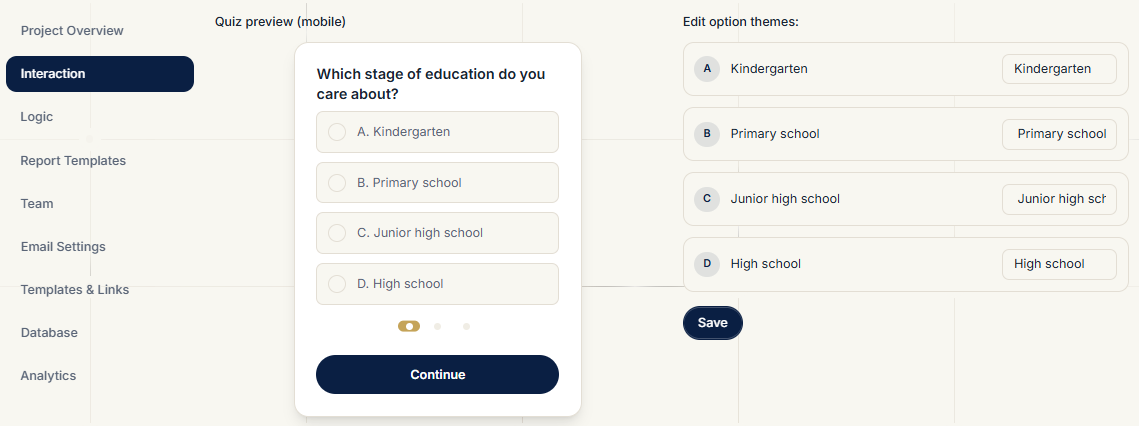
Editing Questions & Options
- Click a node to view its question and options (A/B/C/D) in the phone preview
- Edit question or option text, then click Save to write to the database
- Each option has a theme keyword input (e.g. "Kids English", "Adult IELTS"). When a prospect picks that option, the inquiry is linked to the theme
Choosing a Quiz Style
Style templates are listed below the editor for quick switching:
| Style | Description |
|---|---|
| Oxford Navy | White cards + primary buttons (default) |
| Princeton Orange | Warm orange accent + black serif |
| Yale Blue | Yale navy + gray accents |
| Stanford Red | Stanford red + warm gray background |
| MIT Tech | MIT red + silver gray, minimalist |
| Harvard Crimson | Harvard red + classic black/white |
| System | Follows the OS light/dark mode automatically |
After selecting a style, click Confirm to save it. Generated quiz links and the prospect-facing quiz will use this style.
Saving
- Node changes: click Save to persist immediately
- Style selection: click Confirm to save to the session, used when generating links
- After editing, run the check in Templates & Links again before sharing new links
Related Topics
- View the full decision tree and batch edit: Logic
- Generate quiz links: Templates & Links